Thursday, 15 January 2015

64-BIT PROCESSOR

6 reasons to buy a 64-bit processor phone in 2015:

There’s a big change happening in smartphones and tablets: more and more devices are moving to 64-bit processors such as the Tegra K1 Denver, Snapdragon 810 and Exynos 7 Octa instead of the 32-bit ones we’re used to, and super chips such as the NVIDIA Tegra X1 will make their way to Android devices too. But what are they and why should you care? Here are six reasons to buy a 64-bit processor phone in 2015.
The number refers to the number of bits that can be processed or moved around simultaneously. Think of it in terms of digits: a 16-bit processor can deal with numbers with up to 16 digits at once; a 32-bit processor up to 32 digits; and a 64-bit processor up to 64 digits. The number also applies to data and memory addresses, so where 32-bit processors can address up to 4GB of RAM 64-bit ones can potentially access billions of GB. So far, so straightforward.

1. 64-bit phones will do everything better and last longer:

Samsung 64 bit processor slide
THE MAJOR SMARTPHONE CHIP MAKERS ARE REALLY EXCITED ABOUT 64-BIT PROCESSOR

This is arguably the most important reason to embrace 64-bit phones. The ARMv 7 architecture that powers most 32-bit phones is good, but it’s also getting on a bit: it’s been in phones for around a decade. The newer ARMv 8 architecture is much more streamlined, more energy efficient and much, much faster when it comes to everyday tasks such as getting data from the phone’s RAM. That means everyday stuff such as user interfaces will be smoother, apps will be more responsive and gaming graphics and 4K video will be glorious.

2. 64-bit phones can handle more memory:

ram 1
32-bit processors can handle up to 4GB of RAM (provided the rest of the device is up to the job), but 64-bit ones can handle more - more than you could ever hope to cram into a phone. That’s not a huge deal today but it’ll be increasingly important from this year on, because the more we do with our phones the more memory we need. If you’ve got a huge high-res UHD HDR display, lots of programs running, 4K video streaming and eleventy billion Chrome tabs open you’ll appreciate the extra headroom 64-bit phones provide.

3. 64-bit phones run your existing apps faster:


Android Lollipop is optimized for 64-bit processors, and that includes the new ART runtime that runs your apps - so even apps that the developers haven’t optimized for 64-bit processors should run more quickly. Once the developers catch up, things should improve even more.androidpit art dalvik
The 32-bit Dalvik runtime is no more. Lollipop apps run in the 64-bit ART. / © ANDROIDPIT

4. 64-bit phones should be more secure:


One of the most important improvements in performance comes from anything that relies heavily on maths, such as media decoding - for example, 4K video playback - or encryption and decryption. The difference between 32-bit processing and 64-bit processing for such jobs can be enormous: in some cases algorithms that work just fine on 64-bit platforms are too slow to be used on 32-bit. If we’re going to end up using our phones as mobile wallets, we want the security algorithms to be the strongest ones possible - and for that, we need 64-bit.android sicherheit teaser
  64-bit processing supports much stronger security algorithms. / © ANDROIDPIT


5. 64-bit processors will include some real screamers:

tegra k1 denver
NVIDIA's Denver was the fastest ARM mobile CPU ever made. Even faster ones are coming. / © NVIDIA
Firms such as NVIDIA and ARM are working on some very, very powerful mobile processors. NVIDIA’s Denver, the first 64-bit CPU for Android, was the highest performance ARM CPU ever made - and that was just the first of a whole new generation. NVIDIA, ARM, Qualcomm and Samsung are awfully excited about the performance their 64-bit processors will be able to deliver.

6. You won’t really have a choice

By the end of 2015 it’ll be increasingly difficult to find an Android phone that isn’t packing a 64-bit processor. That applies to the lower end of the market as well as the high end: firms such as Huawei will be making their own 64-bit chips and MediaTek, whose processors power many low-end phones, is embracing 64-bit computing too.

DESKTOP SHARING

Desktop sharing

Desktop sharing is a common name for technologies and products that allow remote access and remote collaboration on a person's computer desktop through a graphical Terminal emulator.
The most common two scenarios for desktop sharing are:
  • Remote log-in
  • Real-time collaboration
  • Desktop sharing uses simple software to share files, presentations and applications over the Internet -- in real time -- with colleagues and clients around the world. Desktop sharing is a central component of Web seminars and Web conferences, enhancing our ability to interact and collaborate over long distances.
  • Desktop sharing has many applications.
  • Remote login allows workers to access their work computers from any Internet-enabled device, including home computers, laptops and even PDAs.
  • Desktop sharing allows for interactive, real-time collaboration between global co-workers.
  • Presentation sharing turns dry teleconferences into engaging on line presentations.
  • Application sharing lets you test drive software without buying, downloading or installing anything.
  • Desktop sharing software works by sending packets of information from a host computer to a remote computer describing what's on the host computer's screen at any given time. The encrypted data travels over the Internet. Some data arrives as image files (JPEGs and GIFs), while others arrive as individual pixels assigned to a particular X and Y coordinate. Desktop sharing software is smart enough to only send information updates on the sections of the screen that have changed and to compress the data significantly, minimizing the amount of necessary bandwidth [source: Go To My PC].­
  • In this How Stuff Works article, we'll explain the technology, applications and features of desktop sharing, including remote log-in, real-time collaboration, presentation sharing and application sharing.

Terminology:

  • Listening mode: where a server connects to a viewer. The server site does not have to configure its firewall/NAT to allow access on port 5900 (or 5800); the onus is on the viewer, which is useful if the server site has no computer expertise, while the viewer user would be expected to be more knowledgeable.
  • Audio Support: the remote control software transfers audio signals across the network and plays the audio through the speakers attached to the local computer. For example, music playback software normally sends audio signals to the locally attached speakers, via some sound controller hardware. If the remote control software package supports audio transfer, the playback software can run on the remote computer, while the music can be heard from the local computer, as though the software were running locally.
  • Built-in Encryption: the software has at least one method of encrypting the data between the local and remote computers, and the encryption mechanism is built into the remote control software.
  • File Transfer: the software allows the user to transfer files between the local and remote computers, from within the client software's user interface.
  • Seamless Window: the software allows an application to be run on the server, and just the application window to be shown on the clients desktop. Normally the remote user interface chrome is also removed, giving the impression that the application is running on the client machines.
  • Remote Assistance: remote and local users are able to view the same screen at the same time, so remote user can assist a local user.
  • Access Permission Request: local user should approve a remote access session start.
  • NAT Pass through: the ability to connect to the server behind a NAT without configuring the router's port forwarding rules. It gives an advantage when you can not configure router (for example it is on Internet service provider's side), but is a serious security risk (unless the traffic is end-to-end encrypted), because all the traffic should pass through some proxy server which in most cases is owned by remote access application's writers.

A HISTORY OF WINDOWS

HISTORY OF WINDOWS:

1998–2000: Windows 98, Windows 2000, Windows Me—Windows evolves for work and play:

Windows 98:
Released on June 25, 1998, Windows 98 is the first version of Windows designed specifically for consumers. PCs are common at work and home, and Internet cafes where you can get on line are popping up. Windows 98 is described as an operating system that “Works Better, Plays Better.”
The Windows 98 desktop
Windows 98 desktop
With Windows 98, you can find information more easily on your PC as well as the Internet. Other improvements include the ability to open and close programs more quickly, and support for reading DVD discs and universal serial bus (USB) devices. Another first appearance is the Quick Launch bar, which lets you run programs without having to browse the Start menu or look for them on the desktop.
Greek trivia: Windows 98 is the last version based on MS‑DOS.

Windows Me:

Designed for home computer use, Windows Me offers numerous music, video, and home networking enhancements and reliability improvements compared to previous versions.
The Windows¤Me media experience
WINDOWS ME media experience
First appearances: System Restore, a feature that can roll back your PC software configuration to a date or time before a problem occurred. Movie Maker provides users with the tools to digitally edit, save, and share home videos. And with Microsoft Windows Media Player 7 technologies, you can find, organize, and play digital media.
Greek trivia: Technically speaking, Windows Me was the last Microsoft operating system to be based on the Windows 95 code base. Microsoft announced that all future operating system products would be based on the Windows NT and Windows 2000 kernel.
Windows 2000 Professional:
More than just the upgrade to Windows NT Workstation 4.0, Windows 2000 Professional is designed to replace Windows 95, Windows 98, and Windows NT Workstation 4.0 on all business desktops and laptops. Built on top of the proven Windows NT Workstation 4.0 code base, Windows 2000 adds major improvements in reliability, ease of use, Internet compatibility, and support for mobile computing.

Among other improvements, Windows 2000 Professional simplifies hardware installation by adding support for a wide variety of new Plug and Play hardware, including advanced networking and wireless products, USB devices, IEEE 1394 devices, and infra red devices.
Greek trivia: The nightly stress test performed on Windows 2000 during development is the equivalent of three months of run time on up to 1,500 computers.

2001–2005: Windows XP—Stable, usable, and fast:

On October 25, 2001, Windows XP is released with a redesigned look and feel that's centered on usability and a unified Help and Support services center. It’s available in 25 languages. From the mid-1970's until the release of Windows XP, about 1 billion PCs have been shipped worldwide.
The Windows XP Home Edition desktop
Windows XP home edition desktop
For Microsoft, Windows XP will become one of its best-selling products in the coming years. It’s both fast and stable. Navigating the Start menu, taskbar, and Control Panel are more intuitive. Awareness of computer viruses and hackers increases, but fears are to a certain extent calmed by the online delivery of security updates. Consumers begin to understand warnings about suspicious attachments and viruses. There’s more emphasis on Help and Support.
Windows XP Home Edition offers a clean, simplified visual design that makes frequently used features more accessible. Designed for home use, Windows XP offers such enhancements as the Network Setup Wizard, Windows Media Player, Windows Movie Maker, and enhanced digital photo capabilities.
Windows XP Professional brings the solid foundation of Windows 2000 to the PC desktop, enhancing reliability, security, and performance. With a fresh visual design, Windows XP Professional includes features for business and advanced home computing, including remote desktop support, an encrypting file system, and system restore and advanced networking features. Key enhancements for mobile users include wireless 802.1x networking support, Windows Messenger, and Remote Assistance.
Windows XP has several editions during these years:
  • Windows XP 64-bit Edition (2001) is the first Microsoft operating system for 64-bit processors designed for working with large amounts of memory and projects such as movie special effects, 3D animations, engineering, and scientific programs.
  • Windows XP Media Center Edition (2002) is made for home computing and entertainment. You can browse the Internet, watch live television, enjoy digital music and video collections, and watch DVDs.
  • Windows XP Tablet PC Edition (2002) realizes the vision of pen-based computing. Tablet PCs include a digital pen for handwriting recognition and you can use the mouse or keyboard, too.
Greek trivia: Windows XP is compiled from 45 million lines of code.

2006–2008: Windows Vista—Smart on security:

Windows Vista is released in 2006 with the strongest security system yet. User Account Control helps prevent potentially harmful software from making changes to your computer. In Windows Vista Ultimate, BitLocker Drive Encryption provides better data protection for your computer, as laptop sales and security needs increase. Windows Vista also features enhancements to Windows Media Player as more and more people come to see their PCs as central locations for digital media. Here you can watch television, view and send photographs, and edit videos.
The Windows Vista desktop
the windows Vista desktop

Design plays a big role in Windows Vista, and features such as the taskbar and the borders around windows get a brand new look. Search gets new emphasis and helps people find files on their PCs faster. Windows Vista introduces new editions that each have a different mix of features. It's available in 35 languages. The redesigned Start button makes its first appearance in Windows Vista.
Windows Vista Ultimate
Greek trivia: More than 1.5 million devices are compatible with Windows Vista at launch.

2009: Windows 7 introduces Windows Touch:

Windows 7 is released for the wireless world of the late 2000s. Laptops are outselling desktops, and it's become common to connect to public wireless hotspots in coffee shops and private networks in the home.
Windows 7 includes new ways to work with windows—like Snap, Peek, and Shake—that improves functionality and makes the interface more fun to use. It also marks the debut of Windows Touch, which lets touchscreen users browse the web, flip through photos, and open files and folders.
The Windows 7 desktop
The Windows 7 Desktop
Greek trivia: Windows 7 is evaluated by 8 million beta testers worldwide before it's released.

2012: Windows 8 features apps and tiles:

Windows 8 is a re imagined operating system, from the chip set to the user experience, and introduces a totally new interface that works smoothly for both touch and mouse and keyboard. It functions as both a tablet for entertainment and a full-featured PC for getting things done. Windows 8 also includes enhancements of the familiar Windows desktop, with a new task bar and streamlined file management.
A PC running Windows 8
 PC running Windows 8
Windows 8 features a Start screen with tiles that connect to people, files, apps, and websites. Apps are front and center, with access to a new place to get apps—the Windows Store—built right in to the Start screen.
Along with Windows 8, Microsoft also launches Windows RT, which runs on some tablets and PCs. Windows RT is designed for sleek devices and long battery life, and exclusively runs apps from the Windows Store. It also comes with a built-in version of Office that's optimized for touchscreens.
Greek trivia: Power users notices that Windows 8 makes the detection and correction of file system errors both more transparent and less intrusive.

2013: Windows 8.1 expands the Windows 8 vision:

Windows 8.1 advances the Windows 8 vision of providing a powerful collection of apps and cloud connectivity on great devices; it’s everything people loved about Windows 8, plus some enhancements.
A tablet running Windows 8.1
A Tablet running windows 8.1
Windows 8.1 combines Microsoft's vision of innovation with customer feedback on Windows 8 to provide many improvements and new features: more Start screen personalization options that sync across all devices, the option to boot directly to the desktop, Bing Smart Search so you can find what you're looking for across the PC or the web, a Start button to navigate between the desktop and Start Screen, and more flexible options for viewing multiple applications at once on one or all screens. There are also several new built-in apps such as Bing Food & Drink, Bing Health & Fitness, and great utility apps like Reading List, Calculator, and Alarms. Many of the great apps shipped in Windows 8 are back and even better, making your experience more enjoyable right from the start.
In addition to these user experience changes, Windows 8.1 includes new and improved features like Workplace Join and Work Folders that enable Windows devices to connect more easily to corporate resources.
Greek trivia: Power users with multi-monitors can now have up to four apps from the Windows Store per screen appear on each monitor connected to the PC.

UNIVERSAL PORTABLE USB CHARGER

UNIVERSAL PORTABLE USB CHARGER:
Super Charger:
Fill your smartphone’s battery to the brim with a blast from the DC-19 portable charger. It carries so much juice that even after a full top-up, there’s more to give.
Nokia Universal Portable USB Charger DC-19
UNIVERSAL PORTABLE USB CHARGER        

Where you go, I go:
Up a mountain or on the bus, keep your phone fully fuelled wherever you are with a portable charger that fits in your pocket.

Quick charge:

The power hits your phone battery fast, so there’s no waiting around. And you’ll always know what’s left in your charger’s tank with at-a-glance LED energy indicators.


Get connected:
Recharge any micro-USB device and then refill the DC-19 using a USB power supply.
Specifications:

Dimensions

  • Height: 99.5 mm
  • Diameter: 25.4 mm
  • Weight: 78 g
  • Connectivity
  • Connectivity:
    • Charging connectors: Micro-USB, USB
    • User Interface:

      • LED indicators: Battery level indicator.
      • Power

        • Battery capacity: 3200 mAh

MICROSOFT SCREEN SHARING

Microsoft Screen Sharing for Lumia Phones:
 HD-10 Microsoft screen sharing hero
MICROSOFT SCREEN SHARING
FEATURES:
                  An easier way to share your screen:
Use the portable NFC disc to connect, and then share your screen from a comfortable chair or while lying in bed – you don’t have to place your Lumia next to the TV. Keep your Lumia with you and share your screen from the best place in the room.
HD-10 Microsoft screen sharing easier way
Snappy and smooth
What you see on the TV is exactly what’s happening on your Lumia. Touch the NFC disc with your Lumia, and whatever you’re doing with it shows up in real-time on the bigger screen – it’s seamless mirroring between your Lumia and an HDMI enabled display.
HD-10 Microsoft screen sharing snappy smooth
A new way to play

Whether it’s a video, an app or a Power Point presentation, screen mirroring makes your media content shine. And if pictures are your thing, use the Nokia imaging apps to enhance your photos on the big screen – gather around the TV and show off your creativity.
HD-10 Microsoft screen sharing new way to play

Cross-platform compatibility:

Microsoft Screen Sharing is designed for your Lumia, but it also works with a wide range of other devices. You can share the screen on Wi-Fi CERTIFIED Miracast phones or tablets – more convenient screen sharing, even if you don’t have a Lumia.

HD-10 Microsoft screen sharing cross platform

Specifications:

  • Dimensions:

    • Diameter: 80 mm
    • Thickness: 21 mm
    • Weight: 115 g
    • Connectivity:
    • Other wireless connectivity: Screen projection, Wi-Fi CERTIFIED Miracast
    • Charging connectors: HD-10 Microsoft screen sharingMicro-USB 
    • AV connectors: HDMI-A 
    • NFC: Connecting 
    • Wi-Fi: WLAN IEEE 802.11 b/g/n 
    • Usage:
    • LED indicators: Power on indicator.

Wednesday, 14 January 2015

HOLOGRAPHY

HOLOGRAPHY:
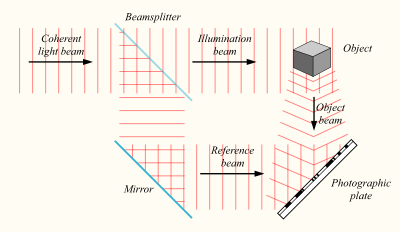
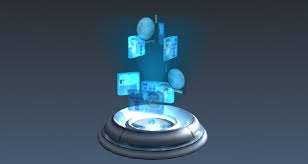
Holography is a technique which enables three-dimensional images (holograms) to be made. It involves the use of a laser, interference, diffraction, light intensity recording and suitable illumination of the recording. The image changes as the position and orientation of the viewing system changes in exactly the same way as if the object were still present, thus making the image appear three-dimensional.

The holographic recording itself is not an image; it consists of an apparently random structure of either varying intensity, density or profile.


3D DISPLAY
HOW HOLOGRAPHY WORKS:


Close-up photograph of a hologram's surface. The object in the hologram is a toy van. It is no more possible to discern the subject of a hologram from this pattern than it is to identify what music has been recorded by looking at a CD surface. Note that the hologram is described by the speckle pattern, rather than the "wavy" line pattern.
Holography is a technique that enables a light field, which is generally the product of a light source scattered off objects, to be recorded and later reconstructed when the original light field is no longer present, due to the absence of the original objects.[24] Holography can be thought of as somewhat similar to sound recording, whereby a sound field created by vibrating matter like musical instruments or vocal cords, is encoded in such a way that it can be reproduced later, without the presence of the original vibrating matter.

WORK OF HOLOGRAPHY
Holography vs. photography:
Holography may be better understood via an examination of its differences from ordinary photography:
COMPARISON BTW HOLOGRAPHY AND PHOTOGRAPHY
A hologram represents a recording of information regarding the light that came from the original scene as scattered in a range of directions rather than from only one direction, as in a photograph. This allows the scene to be viewed from a range of different angles, as if it were still present.
A photograph can be recorded using normal light sources (sunlight or electric lighting) whereas a laser is required to record a hologram.
A lens is required in photography to record the image, whereas in holography, the light from the object is scattered directly onto the recording medium.
A holographic recording requires a second light beam (the reference beam) to be directed onto the recording medium.
A photograph can be viewed in a wide range of lighting conditions, whereas holograms can only be viewed with very specific forms of illumination.
When a photograph is cut in half, each piece shows half of the scene. When a hologram is cut in half, the whole scene can still be seen in each piece. This is because, whereas each point in a photograph only represents light scattered from a single point in the scene, each point on a holographic recording includes information about light scattered from every point in the scene. It can be thought of as viewing a street outside a house through a 4 ft x 4 ft window, then through a 2 ft x 2 ft window. One can see all of the same things through the smaller window (by moving the head to change the viewing angle), but the viewer can see more at once through the 4 ft window.
A photograph is a two-dimensional representation that can only reproduce a rudimentary three-dimensional effect, whereas the reproduced viewing range of a hologram adds many more depth perception cues that were present in the original scene. These cues are recognized by the human brain and translated into the same perception of a three-dimensional image as when the original scene might have been viewed.

PHOTOGRAPHY
A photograph clearly maps out the light field of the original scene. The developed hologram's surface consists of a very fine, seemingly random pattern, which appears to bear no relationship to the scene it recorded.
HOLOGRAPHY


 In photography, only intensity is recorded  so photography produces two dimensional picture of the  object whereas in holography, both intensity as well as phase of light wave is recorded, thus holography gives three dimensional picture of the object.

 Negative is prepared first in photography whereas in holography no negative is required. The hologram is negative and image  it gives is positive.

If  the  hologram  is  broken  into parts, each part is capable of reconstructing the  entire object. But in photography the destruction of even very small portion of negative or photography results in a irrepareable loss of information.

 Holography has high information capacity as compared to photography.

Applications for Holography

In the past technologies have filtered down to hundreds of areas of life. In the same way 3D holography could spell sweeping changes for the future:
In the living room: bringing full color, holographic 3D images in HDTV comparable quality

With the www and computers now an every day part of so many aspects of home communications, SeeReal technology dovetails perfectly with today’s technological developments: content can be read from computer hard drives, DVD or straight off the Internet.


In the office and development departments: providing realistic images to boost business performance

SeeReal holography is ideal for CAD/CAM applications, allowing designers and engineers to convert ‘true’ 3D content into even ‘truer’ moving 3D simulations. Not only can output now be assessed in real time, but companies can also give clients life-like product demos and show samples in all corners of the globe. Standard stereo content can be converted into true holographic 3D.


PCs and game parlours

Who knows what the future holds, but with interactive applications and real-time gaming already exploding worldwide, the potential avenues for SeeReal holography to open up in this technology field could be boundless. Adventure becomes real life. Action really makes hearts beat.